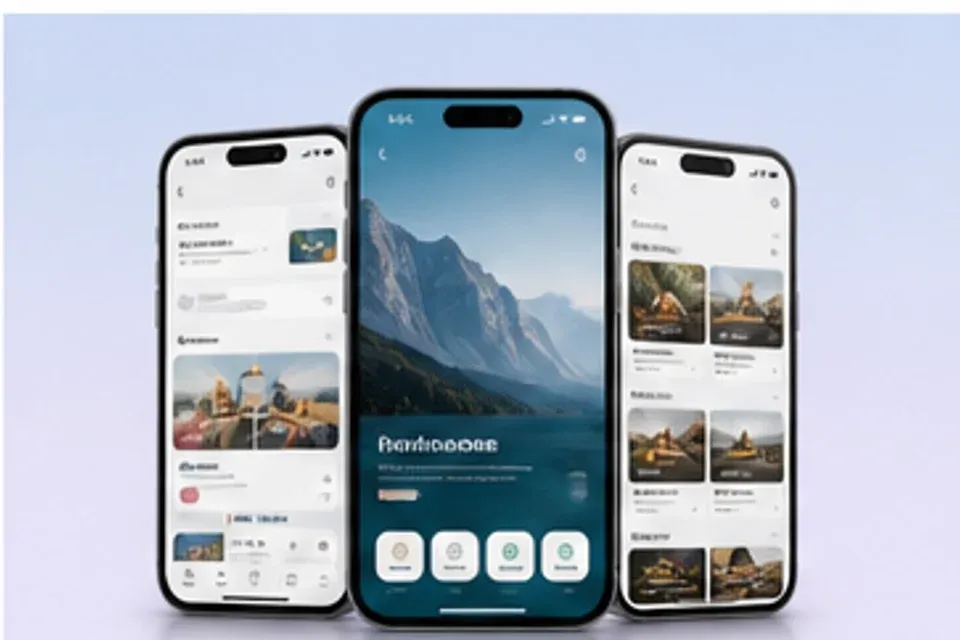
Store Launch
Store Launch visual 01
Arrange screenshots, device frames, feature captions, and update graphics into a store story that is easy to scan.
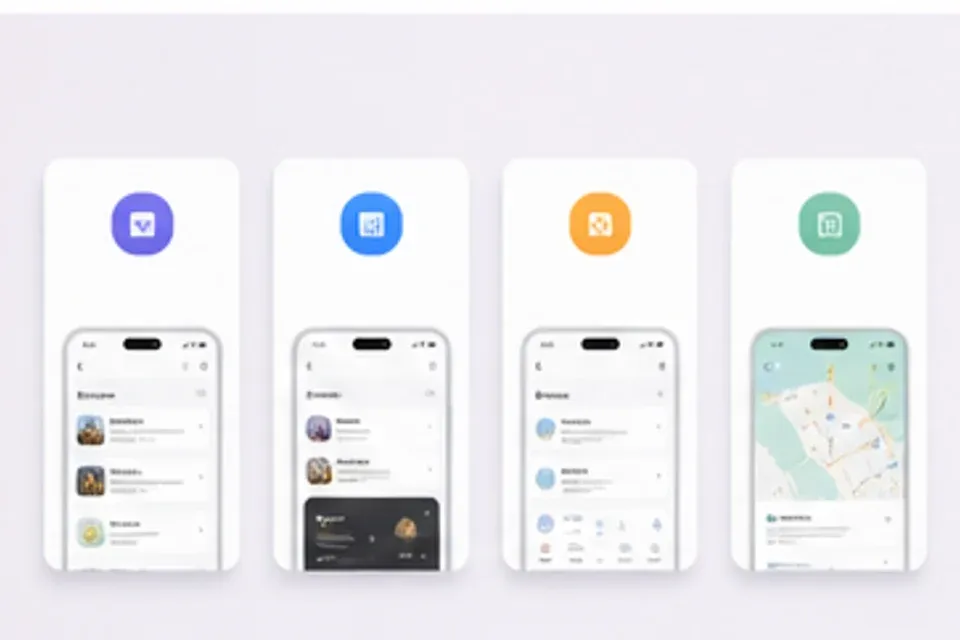
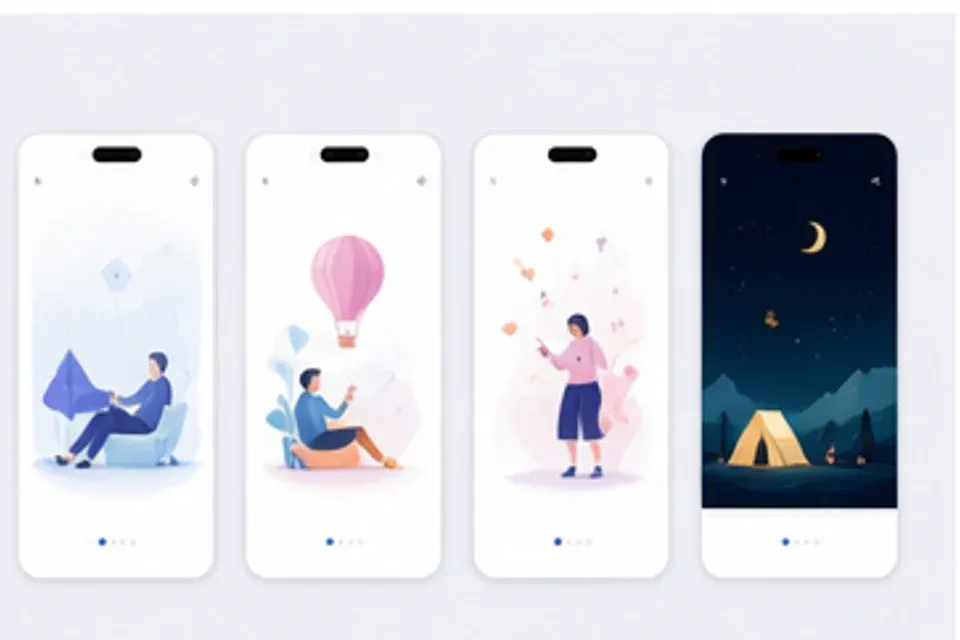
A clear opening benefit, believable product screens, readable captions, and a logical sequence from first image to install.
Plan the benefit story from the first frame to the final detail
Use real interface moments to support each feature claim
Keep every message short enough to scan on a phone
Prepare coordinated graphics for listings, announcements, and acquisition
Use the interface as proof, keep captions short, and give each frame a distinct job in the listing.
Lead with the strongest reason to install, explain the core workflow, then support the decision with useful details.
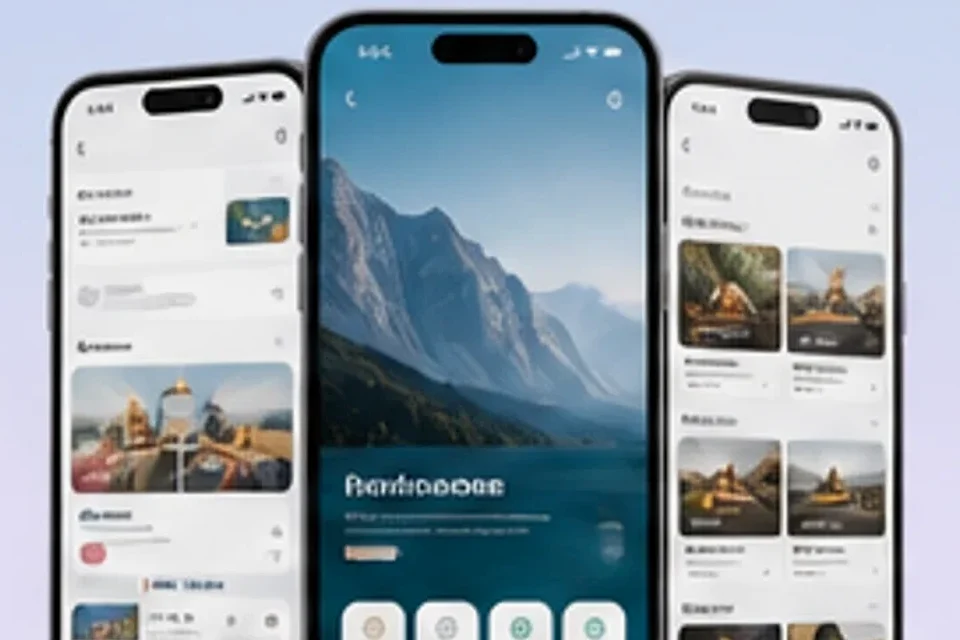
Lead with the strongest benefit, show the core workflow, and save secondary details for later.
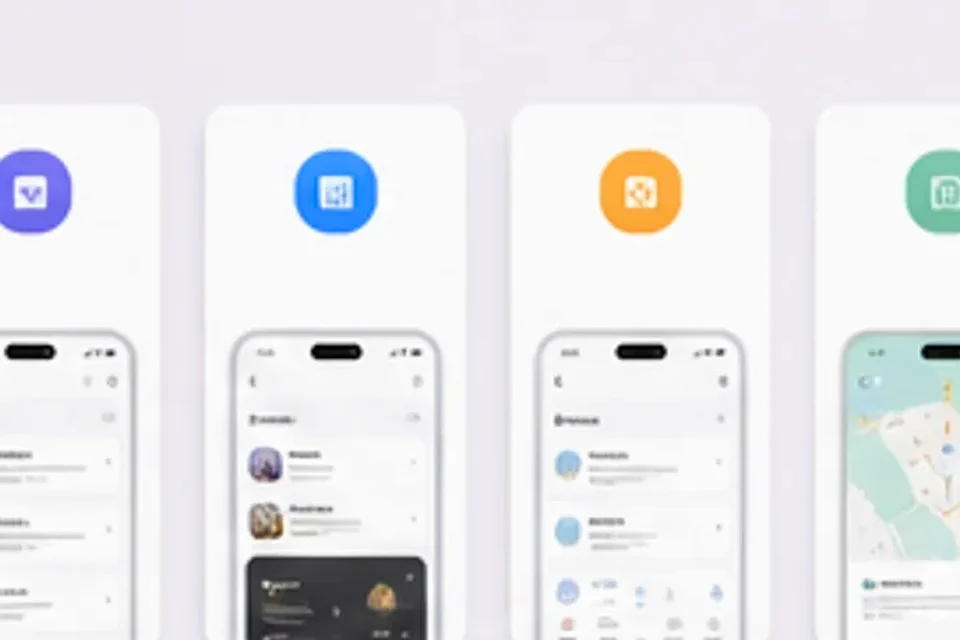
Present real screens clearly without letting decorative mockups overpower the interface.
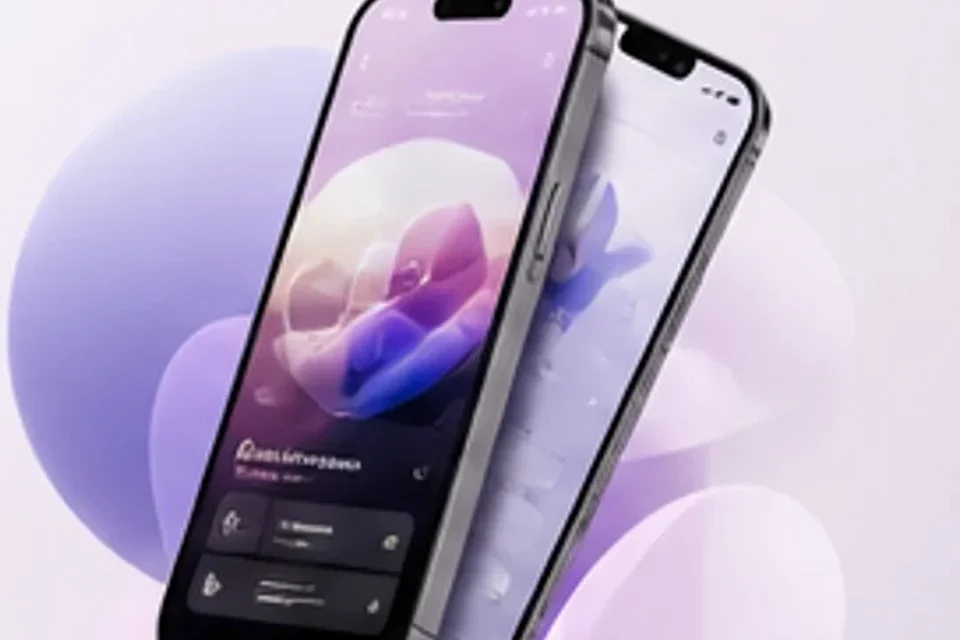
Adapt the approved listing story for update posts, acquisition ads, and onboarding messages.
Refresh an existing listing, explain a major release, support paid installs, or prepare onboarding graphics.
Reorder existing screenshots around the benefits customers care about now.
Create coordinated graphics for new features, store updates, and announcement channels.
Explain first-run value with clear interface moments and concise guidance.
Adapt the strongest product benefits into channel-specific install creative.
Choose the main promise, map the screenshot order, prepare the frames, and export the full launch package.
Name the audience, strongest benefit, relevant workflow, and release message.
Give each frame one purpose and arrange the story from broad value to useful detail.
Combine product screens, short captions, device context, and a unified listing style.
Prepare the required sizes for stores, release posts, acquisition ads, and onboarding.
Build screenshot sequences, device frames, feature panels, release graphics, and acquisition assets.
Preparing curated app examples for this homepage.
Start with the strongest install reason and turn the approved product screens into a clear store sequence.